How to Translate an Entire EPUB on iPhone or Android
By Meside AI · Last updated: 2026-10-18
Yes. You can translate an entire DRM-free EPUB in your phone browser with EPUB Translator, without installing a translation app or extension, using a computer, or supplying an API key. Open Safari on iPhone or Chrome on Android, select your book, sign in, review its quote, choose the reading language after Start translation, and pay per book. There is no subscription. Both translation-only and bilingual EPUB downloads are included.
Translation runs through an online cloud service, so you need an internet connection to upload and use the service. “No app installation” describes the translation steps. Opening the finished file in Apple Books or another EPUB reader is a separate, optional reading step using a reader you already have.
Before you start: an accessible EPUB and permission to translate
Have one .epub saved somewhere your phone can access. On iPhone, that might be Files → Browse → iCloud Drive or On My iPhone. On Android, it might be Downloads in your Files app. If the book is only in cloud storage, make sure the file is available before selecting it.
Use a book you have the right to upload and translate. DRM-protected files are unsupported. A book visible in a Kindle library is not necessarily an exportable, unprotected EPUB; buying a Kindle book does not establish that you can send its file through this workflow. This service does not remove DRM. A text-based PDF is also accepted and becomes EPUB, but this guide follows the EPUB route.
You will need a Google or email sign-in and a way to pay for the book. Review current per-book pricing first: $0.004–$0.0125 per 1,000 source characters, with a minimum of $3.99. Your exact file quote appears after sign-in and server parsing, before payment. You do not need a developer account or translation-provider credentials.
What the screenshots verify
Checked October 18, 2026. We publish EPUB Translator and have a commercial interest in it. These are screenshots of the actual web interface in Playwright WebKit with an iPhone 13 profile and Chromium with a Pixel 7 profile, running on macOS. They are browser emulation, not physical iPhone Safari or Android Chrome tests. Sign-in, quote, payment, translation status and downloads use local test fixtures; no payment or paid translation was made for this guide. The test book is synthetic, not a customer's book or a production translation sample.
The file-location and reader-import instructions below were checked against linked Apple and Google documentation. Browser automation supplies the fixture file directly: it does not verify the native Files picker, share sheet, device download folder or Books import. Menu names can vary with OS version and your installed readers.
Translate the whole book in your mobile browser
1. Open the upload page and select the EPUB
Open EPUB Translator's upload page in Safari on iPhone or Chrome on Android. Use the upload control to choose your .epub.
- iPhone Safari: in the system file chooser, use Choose File or Browse if offered, then locate the book in Files. Look in iCloud Drive, On My iPhone or your configured Downloads folder. Tap the EPUB to select it.
- Android Chrome: in the system file chooser, browse Files or Downloads and select the EPUB. The exact chooser and folder labels depend on the phone and its file provider.
Back on the webpage, check the selected book's title or filename. A cover appears when available. If you cannot locate the book, open the phone's Files app first and confirm that you have the actual .epub, rather than a library shortcut or a ZIP archive that still needs extracting.
2. Sign in with Google or email
The selected-book panel offers Google and email sign-in. Choose either and finish authentication. The app carries the selected file through sign-in; if the browser cannot restore it, select it again when asked. Selecting a file alone does not start translation, and the file-specific quote comes after login.
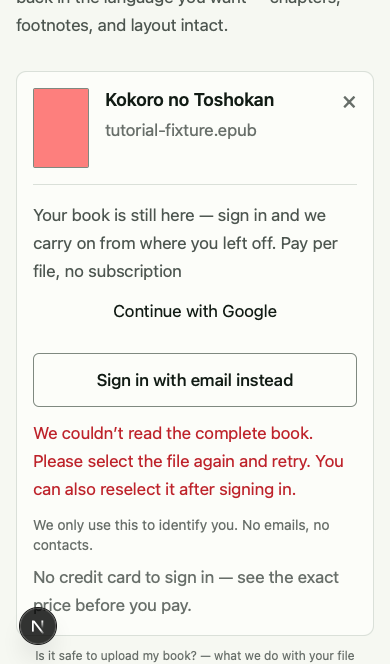
WebKit, iPhone 13 profile: selected-book and sign-in UI with a synthetic EPUB. This run hit a browser file-storage error and followed the visible request to reselect after sign-in. It is not an iPhone system file chooser or a real Google sign-in.
3. Wait for parsing and review the whole-book quote
After sign-in, the file uploads and the server parses it. Review the exact quote for that book. Pricing uses the source-character count, rather than your reader's page count, which changes with font size and screen dimensions.
There is no target-language dropdown on the quote page. Check that this is the book you intended to translate before continuing. Uploading and seeing a quote are not payment.
4. Tap Start translation, then explicitly choose a language
Tap Start translation to open the language picker. Opening or closing the picker does not create an order, spend balance or start translation. Choose the language you want to read from the displayed native-language names. The app does not preselect it from your phone's language or an earlier choice.
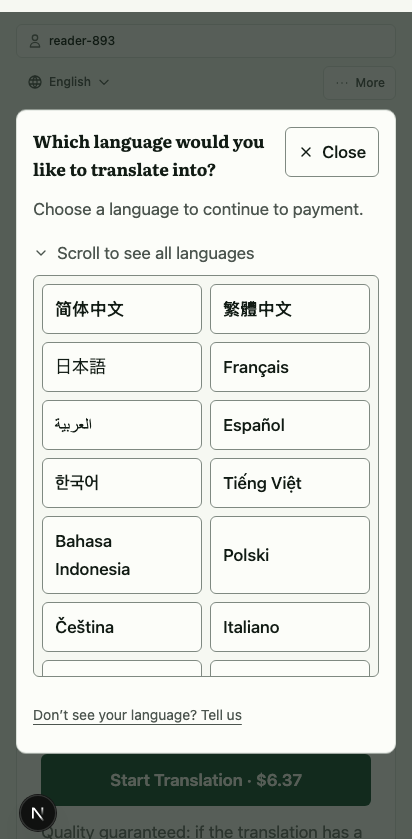
Chromium, Pixel 7 profile: actual language-picker UI backed by local quote data. This is browser emulation, not an Android system screen. Choose your target language explicitly.
Read the notice before tapping a language. For a new payment, choosing takes you to checkout. If existing account balance covers the book, the notice instead says that choosing a language will use balance and start translation. That branch has no separate checkout. The full workflow explains both paths.
5. Check the book, language and total, then pay
For checkout, verify the book title or filename, selected language and total. You can return to change the language before paying. This is a payment for the whole book, with no subscription to cancel; both EPUB editions are included.
Successful payment starts translation automatically. You do not need to paste chapters into another tool, enter an API key or submit a second translation request. The screenshots in this guide do not show a real payment: our checkout test uses a local payment stub.
6. Follow the translation status
The service processes and packages the book in the cloud. Your phone is not running a desktop translation engine. Processing time depends on the book and any retries; do not assume a fixed completion time. Return to the same account to check the job's status if you leave the page.
A completed status means the output is ready, not that a human has proofread every passage. Names, meaning, complex layouts and completeness still deserve review.
7. Download the translation-only or bilingual EPUB
When the book is completed, tap Download translation or Download bilingual, or download each in turn. You receive two separate EPUB files, not a translated PDF or a ZIP containing both. You do not have to choose an output edition before translation.
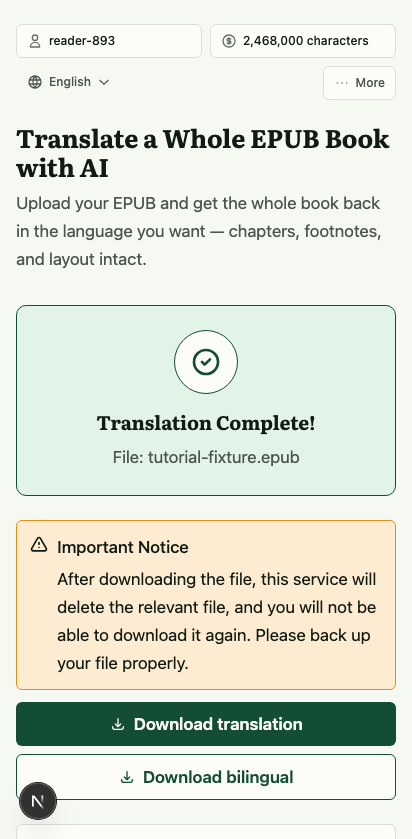
Chromium, Pixel 7 profile: completed-state fixture showing the two download buttons. The test downloads synthetic EPUB fixture bytes; it does not demonstrate a paid translation's literary quality or a physical phone's download manager.
The bilingual edition puts original text above its translation paragraph by paragraph, rather than in two columns. Identical blocks are not duplicated, and a chapter that cannot align safely can fall back to translation-only text. Keep your source file for comparison.
8. Find the download and open it in your reader
iPhone Safari → Apple Books: tap Safari's Downloads button to find the finished download, or open Files → Browse → iCloud Drive → Downloads. If you changed Safari's download location, look there instead. Apple documents both routes in its download-location guide. Locate the EPUB and tap it to open it in Books; Apple documents this EPUB-opening action. If your file opens in a preview or another app, try its Share menu and choose Books when available. That share-sheet fallback depends on your installed apps and was not device-tested here.
Android Chrome → your EPUB reader: open Chrome → More → Downloads, or find the file in your Files app. Google's Chrome download instructions cover finding and sharing downloaded files. Use your existing reader's import or Open with action. For example, Google's Play Books instructions specify Downloads or Files → More → Open With → Play Books / Upload to Play Books, then Library → Uploads. Other readers have their own import menus.
Using a reader is optional and separate from translation; you can also keep the EPUB for later. After importing, check the table of contents, chapter order, footnote links and passages from the beginning, middle and end. Reader fonts and text expansion change page breaks. The bilingual copy helps you compare passages but does not certify translation accuracy.
How do the other mobile EPUB translation options compare?
These are official-documentation checks dated October 18, 2026, not comparative translation tests. Mobile EPUB translation is not exclusive to EPUB Translator. In particular, Immersive Translate explicitly documents it on iOS and Android. Choose based on the setup and delivered file you want, and check current vendor terms before paying.
| Tool | Whole EPUB on a phone | Installation, computer and API requirements | Returned EPUB and payment model |
|---|---|---|---|
| EPUB Translator | Phone-browser workflow described above | No translation app, extension, computer or user-supplied API key; sign-in and internet required | Both translation-only and bilingual EPUBs; pay per book, no subscription |
| Google Translate document upload | Google says document translation is unavailable on mobile; its input list is DOCX, PDF, PPTX and XLSX, without EPUB | Browser document feature is a computer workflow; no user API key for that consumer feature | Downloads supported document translations, not a direct EPUB-to-EPUB route; consumer feature is free, separate from Google's paid Cloud API |
| Calibre + Ebook Translator | The documented plugin workflow runs in desktop Calibre; a phone-only plugin route was not verified | Install Calibre and the plugin on a computer; credentials depend on the selected engine, with some no-key options | EPUB output and bilingual/translation-only settings; plugin is free/open source, engine charges depend on provider |
| Immersive Translate | Official page explicitly supports iOS/Android EPUB translation and export | Documented mobile route uses its app, without a computer; a no-install browser-only mobile route and universal API-key requirement were not established by the reviewed sources | Translated and bilingual EPUB options; free tier and paid memberships, subject to engine/quota terms |
Sources: Google document help, Bookfere's Calibre plugin and engine/output settings, Immersive Translate's mobile EPUB documentation and membership terms. “Not verified” is a limit of this review, not a claim that a feature is absent. Our broader EPUB tool comparison covers other whole-book purchase decisions.
Ready to translate your book on your phone?
If you have an accessible EPUB you are allowed to translate, select your book in your phone browser, sign in and review its exact quote. Check current pricing before committing. The purchase covers the whole-book translation workflow and both downloadable EPUB editions, with the automated-translation and layout limits described above.